
Introducing Camino – TYPO3's New Default Theme
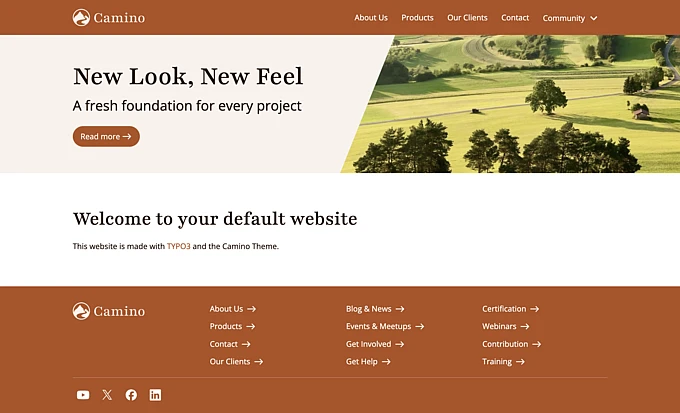
Earlier this month we saw the release of TYPO3 14.1 and with it came the introduction of Camino – TYPO3’s new default theme.

What Is Camino
Camino's primary goal is to give users the ability to create a basic website that features a working frontend theme with zero setup required.
Camino can be easily customised, users can choose between three different backend layouts and can change the colour scheme used in the frontend as well as being able to add their own logo.
The theme also comes with a range of content elements, including standard TYPO3 content elements and bespoke content elements created specifically for the Camino theme.
The theme itself will continue to receive updates and improvements prior to TYPO3 14 LTS, so check back in early in spring for further updates.
About This Guide
This guide is all about showcasing Camino’s features, for detailed information about how to install and configure Camino, visit the TYPO3 Camino Documentation.
Backend Layouts
Camino comes with three different backend layouts to choose from.
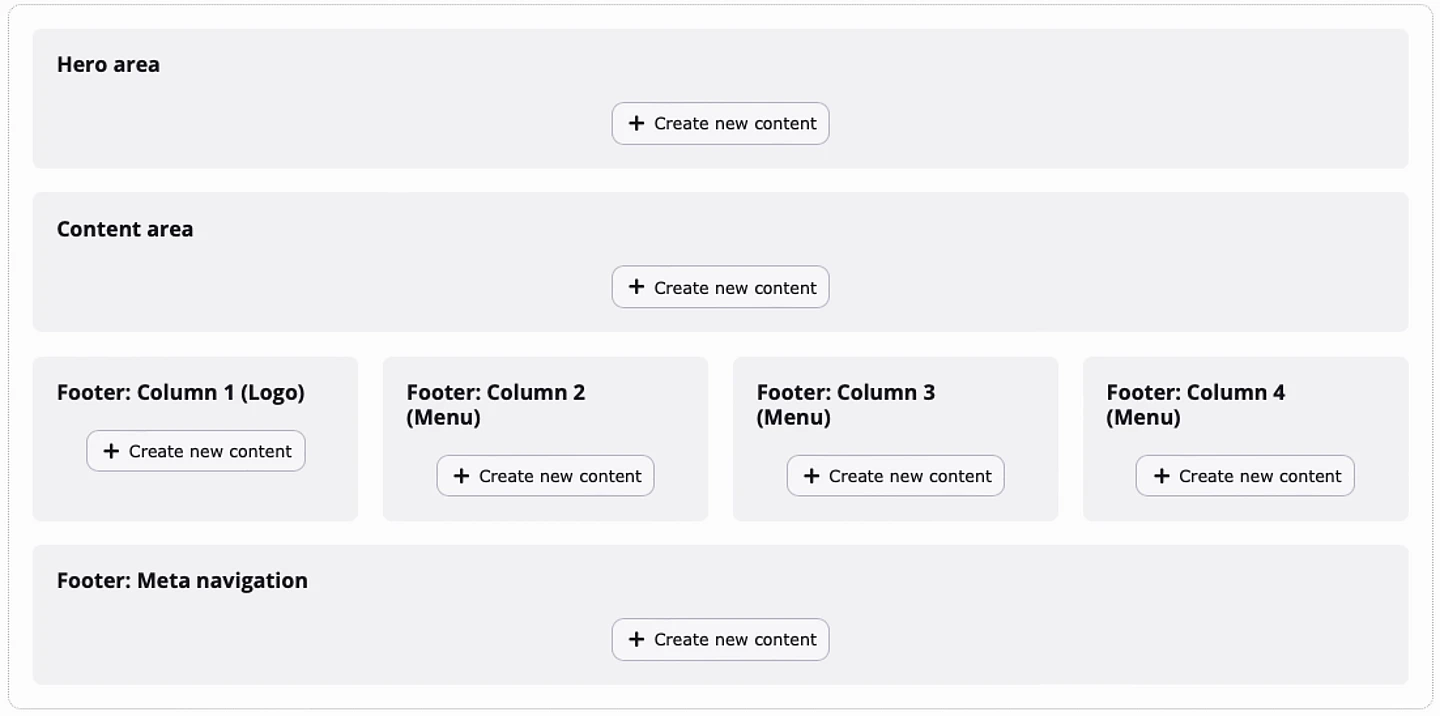
Start Page
The start page backend layout is ideal for a homepage.
It contains sections to add a banner/header, regular content and populate content for the footer.
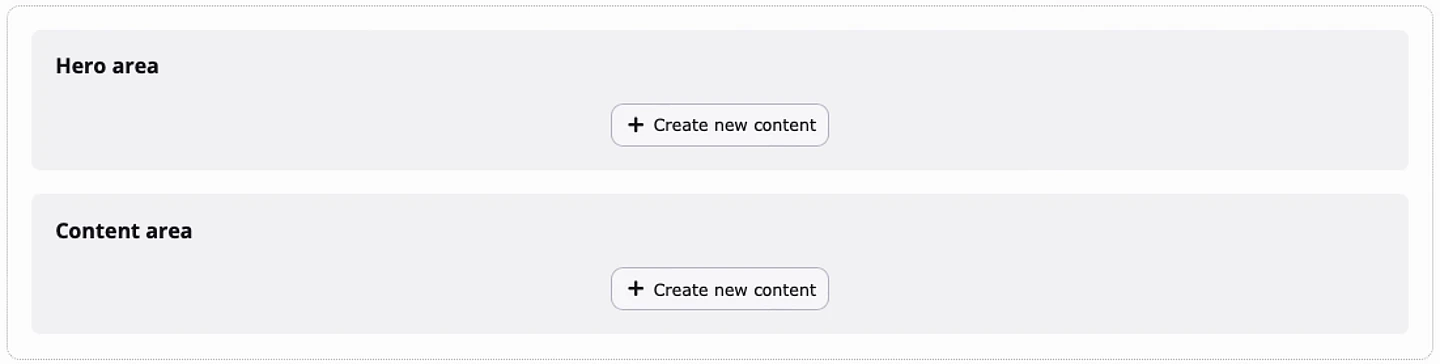
Content Page - Full Width
Content Page - Full width contains a single area where typical page content such as text and images can be added.
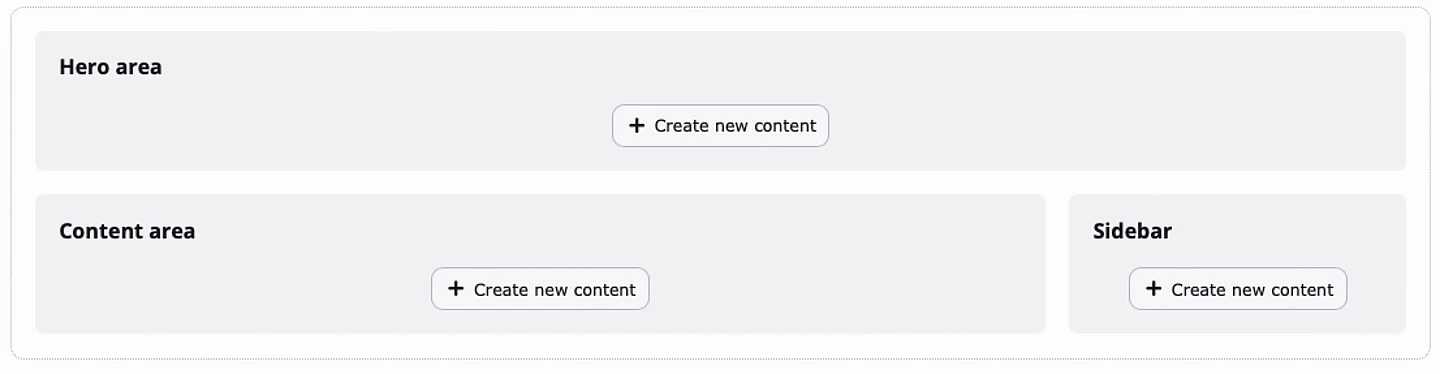
Content Page - With Sidebar
Content Page - With Sidebar contains two columns, with the sidebar section being used to add meta information such as the page author and text teasers.
Global Footer
Any content that is added to the footer of the root page will persist and be visible on every other page when viewed in the frontend.
For example, if the "Social Media" content element is added to the footer section, that
content will be visible, in the footer on every page of the site in the frontend.
To add content to the footer, use the Start Page backend layout on the root page of your site.
Frontend Colour Schemes & Custom Logo’s
There are four different color schemes to choose from.




Adding A Custom Logo
The Camino logo is present both at the top of page and in the footer.
To change the default logo, select the root page of your site:
Root Page > Page Properties > Appearance > Logo.
Don't forget to save your changes and clear the cache.
Content Elements
Camino comes with a combination of standard and bespoke content elements.
Standard TYPO3 Content Elements
Camino uses only a small number of TYPO3's standard content elements, these include:
- Text
- Text & Images
- Form (used to embed forms that are created in the Forms module).
- Login Form (used to access restricted areas in the frontend).
Custom Content Elements
Camino comes with new bespoke content elements that make it easy to add banners and share links to third party platforms such as Facebook, YouTube and Instagram.
As discussed in the Backend Layouts section, custom content elements can only be used in specific places, this also applies to standard content elements.
For example, the Page Header content element can only be used on the Hero Section of the Start Page backend layout and cannot be inserted into the footer or any other section on the page.
Below is a list of all the custom content elements that ship with Camino.
Hero Page Header, Small & Text Only
With these content elements, it is possible to create banners that sit at the top of the page and can include a title, sub header, an image and a CTA (Call To Action) that links to another page or an external source.
These three content elements can only be used on the Hero Section of the Start Page backend layout.

Text Media Teaser Grid
Text-Media Teaser Grid allows users to add a collection of "cards" that contain a title, subtext and an image that links either to an internal page or an external source.
Users can also add a title, text and a button that sits above the collection of cards.
This content element can only be used in Content Area found in all three backend layouts.
Text Teaser
With Text Teaser users can add a title and text that is accompanied by a button that links to an internal page or an external source.
The button can be customised with an icon and can have its appearance modified using the Link configuration drop-down.
This content element can only be used in Content Area found in all three backend layouts.
Author Card
The Author Card can be used to add information about the author of the page. Information such as the author's name, title and description can be added along with an image and contact details.
Social Media Icons
Add links to various platforms including Linkedin, Instagram, Facebook, Twitter and YouTube.
This content element can only be added to the Footer: Column 1 section of the Start Page Backend Layout.
Link List
Add links to internal pages and external sources using the Link List content element.
This content element can only be added to the Footer: Column and Footer: Meta Navigation sections of the Start Page Backend Layout.
Thank You To b13
A big thank you goes to b13, who started this project and developed the theme itself. A special mention goes to Laura Heine, Jasmina Ließmann, David Steeb, and Florian Keitgen.
